Direct Deposit/EFT
Paying employees with an Electronic Funds Transfer or Direct Deposit provides a convenient way for employees to get paychecks directly into their accounts.
Church Windows allows you to create EFT files to upload to your bank in order to complete these transfers.
Direct Deposit Process
Organization Setup
-
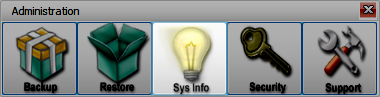
Information about your organization defaults to the data entered under Administration > Sys Info when Church Windows was initially installed. You can edit or create a set of Organization Information with alternate contact information for your Payroll department.
-
In Payroll, the EFT Setup window contains the organization's banking information and settings. Most banks accept the default format that Church Windows produces for electronic transfer files, however some banks may have slight variations. In that case, your bank will provide you with changes to make on the EFT/ACH Overrides tab.
-
Employees that want to receive direct deposits will complete an Authorization Form, granting the organization permission to send funds to their account.
Employee Setup
-
Employee Direct Deposit information is included in their Employees & Contractors under Data Setup > Employees/Contractors > HR Tab > Direct Deposit Tab.
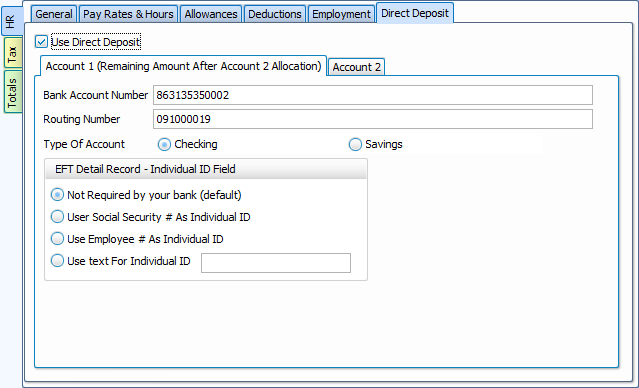
Check the box, Use Direct Deposit to enter the employee's bank account information and settings. Employees can split their pay check between two accounts with a flat amount or percentage on the Account 2 tab.
-
To test that all account settings are correct, Pre-Notify before your first direct deposit to test these settings and verify account information.
Processing EFT Transactions
-
When you Calculate Payroll with Direct Deposit employees included, you'll have the option to Create EFT Transaction File on the Posting Selections screen.

-
If you leave this box unchecked, you can Print Checks and come back to finish EFT transactions by going to Direct Deposit/EFT > Create EFT. Click
 to provide pay stubs for direct deposit recipients.
 -
If you opted to Create EFT Transaction File on the Posting Selections screen, you'll continue to screens to Select Recipients and choose a location to save the EFT File. Click
 to provide pay stubs for direct deposit recipients.

-
After posting payroll, you'll be able to see a summary of the posted payroll, checks that were printed, and whether EFT transaction data was saved.
-
-
The location where you saved your EFT file will have a DAT File. To initiate a transfer, most banks allow you to upload this file on their website. Banks that do not offer this feature may accept EFT files via FTP (File Transport Protocol) or via Email.
Changes and Corrections
-
If you can't locate the saved file, you can create an EFT Copy to re-download the DAT file.
-
Updates to employee account information can be made in the Employee Files, located under Data Setup > Employees/Contractors > HR Tab > Direct Deposit Tab. These changes will be included in the next payroll run.
-
In instances where payroll needs to be corrected, you can use Calculate Adjustment to make changes to a previously posted payroll, including EFT transaction. On rare occasion, you may have cause to Void EFT, however this does not impact any files or processing payments that have already been sent to the bank.